How Can Operations Teams Use AI Video to Explain Processes and Train Staff?
Published: October 28, 2026
No. Use screen recordings for exact software steps and generated clips for introductions, concepts and transitions.
The product page lists Veo, Sora, Kling, Wan and Seedance among them.
Yes. The page lists an Edit any video option.
The page lists native audio with lip sync, sound effects and music.
The page mentions free access to begin, with paid features beyond that. Check the site for current details.
As short as the idea allows. Thirty seconds to two minutes works for most single topics.
The process owner, plus compliance or legal where the topic has regulatory weight.
Every operations team has a process that lives in one person's head. It might be how invoices get approved, how a new supplier is onboarded or how a document moves from the inbox to the right system. When that person is busy or leaves, the knowledge goes with them. Written procedures help, but long documents are often skimmed, and many people learn faster by watching.
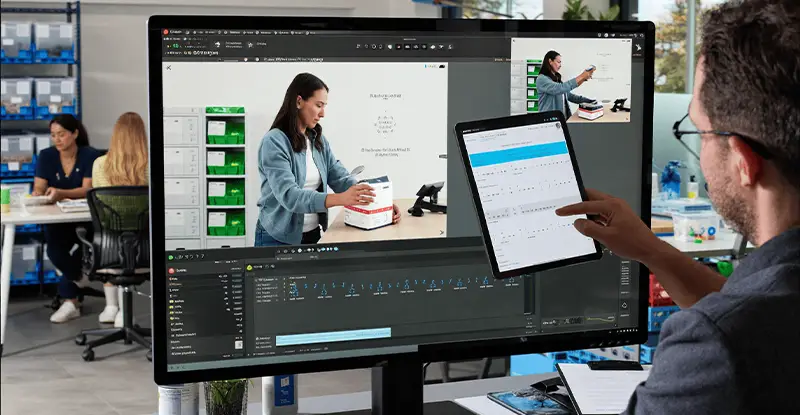
The usual barrier is production. A training video means scripting, filming, editing and then redoing it whenever the process changes. For a team that already has a full workload, it rarely happens. An AI Video Generator changes the maths by turning a written description into a short clip that you can drop into a training module, a knowledge base or an onboarding email. Higgsfield AI is a native AI creative suite, which offers advanced AI image, video, and voice generation, editing, and upscaling tools. This article explains how operations, finance and compliance teams can use it for explainers and training, and where human review has to stay in charge.
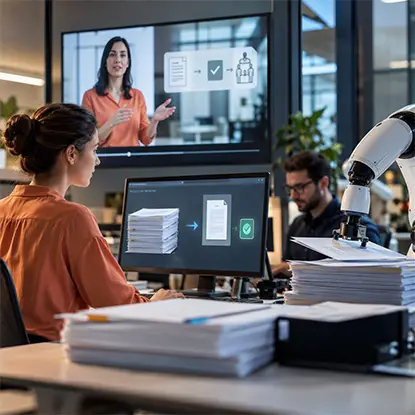
Organizations can use AI video to communicate new procedures and AI automation to execute routine document tasks. docAlpha transforms incoming documents into validated data and routes work to people when judgment is required.
Support faster adoption of new processes while preserving human oversight.
Three problems come up again and again.
The first is time. Subject matter experts are the people who know the process best, and they are also the busiest. Asking them to appear on camera, or to sit with an editor, is a big request.
The second is change. Software updates, new approval rules and new document types mean a video can be out of date within weeks. If every edit needs a reshoot, the video is abandoned.
The third is consistency. When different people record different videos, tone, quality and terminology vary. New starters get a patchwork of explanations.
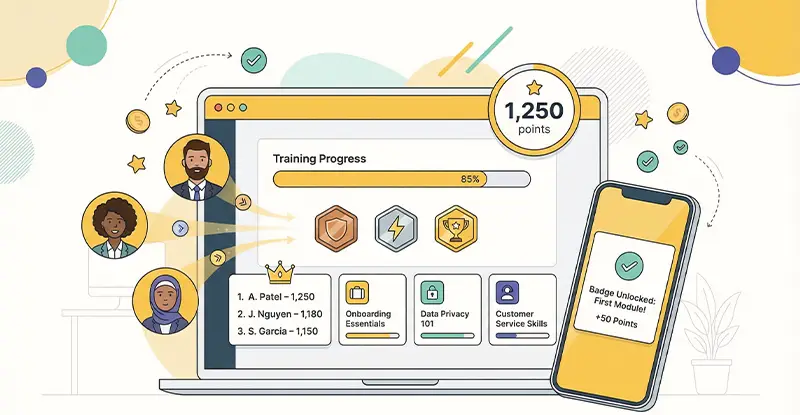
Automation projects make these gaps more visible. As the team behind a workflow tool changes how work flows, the people using it need a clear picture of the new steps. This site's article on automation, gamification and employee training looks at why training matters alongside the technology. Short, easy to update video is one practical way to support it.
According to the live product page, Higgsfield's video tool offers the following features that matter for business explainers.
Prompt to video. You describe a scene in plain language and Higgsfield generates a clip. For process explainers, that means illustrative scenes, such as a person working at a desk, a document moving between stages or a team reviewing a dashboard.
First and last frame control. You can set how a clip starts and ends, which helps when one scene needs to flow into the next, such as moving from an inbox view to an approval view.
Edit any video. You can change existing footage by describing the change, which is helpful if you already have clips you want to update.
Motion control from a reference video. You can guide movement using a reference clip, for example to reuse a camera move across a whole series.
Multiple models. The page lists Veo, Sora, Kling, Wan and Seedance among the available models, so you can try different looks for the same scene.
Cinema Studio. Photography and Videography modes give you a more directed way to frame shots.
Native audio. Higgsfield can produce audio with lip sync, sound effects and music, so explainers do not have to be silent.
Free access to start. The page mentions free access to begin, with paid features beyond that. It does not give limits or prices I can quote, so check Higgsfield's site for current plans before you budget.
An important point: generated video is best for illustrative scenes and context. It is not a replacement for screen recordings of real software. When you need to show exact buttons and screens, record your actual system and use generated clips around it for introductions, transitions and concept visuals.

AI video helps standardize process explanations, yet inconsistent document intake can still lead to mistakes during onboarding. docAlpha applies configurable intelligent rules to classify documents, extract information, and direct exceptions for review.
Help teams follow repeatable workflows instead of relying on tribal knowledge.
Some topics work better than others.
Concept introductions. A short clip that explains why a process exists and what good looks like.
Onboarding welcome videos. A friendly opening that sets expectations for a new starter's first week.
Policy reminders. A brief explainer for rules people tend to forget, such as how to label documents or when to escalate an exception.
Process overviews. A visual map of the steps from start to finish, followed by detailed written or recorded instructions.
Change announcements. A quick video that tells staff what is changing and when.
Safety and security awareness. Short scenarios that illustrate good habits, such as spotting a suspicious email.
For anything with legal, financial or regulatory weight, treat the video as a supplement. The authoritative source stays in your approved written procedures.
Recommended reading: Learn How AI Automation Works in Business Processes
A little structure produces much better results.
Clear scene descriptions give clearer clips. A reliable pattern is subject, action, setting, style and camera.
For example: "A finance team member reviewing documents on a laptop in a bright office, slow push in, soft natural light, clean and realistic."
A few habits help:
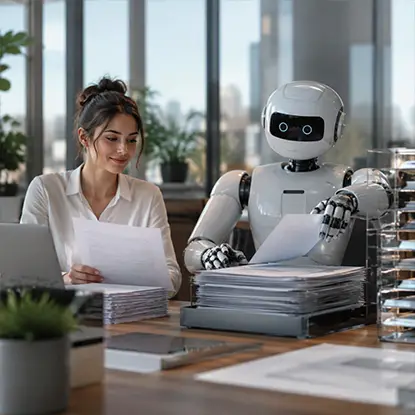
An AI video can explain invoice approvals and document handoffs in minutes; employees may still repeat those steps manually every day. docAlpha automates document capture, data validation, and exception routing within connected business workflows.
Make training more valuable by improving the underlying process itself.
The reason many training videos die is that they are hard to change. Build with updates in mind.
Use short modules. A set of five 30 second clips is easier to update than one five minute video.
Separate concepts from specifics. Put timeless ideas in generated video and put changeable details, such as screen steps, in text or recordings that are quick to replace.
Keep scripts in a shared document. When a step changes, edit the script and regenerate only the affected scene.
Track versions. Add a version and date to each module so staff can tell if they are watching the current one.
Set a review date. Assign an owner to check each video on a schedule, for example every quarter or after any major system change.
You may already have clips from workshops, demos or recorded meetings. The product page states that you can edit existing video as well as generate new clips, so you can reuse what you have. Use the editing option to adjust a scene or refresh the visuals, and keep sensitive material, such as customer data or confidential screens, out of anything you upload unless your policies allow it.
For voice, keep one consistent narrator style across modules. If you use generated audio, listen to the whole clip, check pronunciation of product names and acronyms, and keep captions on for accessibility and for people who watch without sound.
Recommended reading: Discover How Intelligent Automation Balances Human and Machine Work
A short checklist keeps quality high.
Using generated video for exact software steps. Show real screens for real clicks.
Making videos too long. Short clips hold attention and are easier to maintain.
Skipping the review. A polished video that is wrong is worse than a plain one that is right.
Ignoring accessibility. Always add captions and check contrast.
Letting videos go stale. Assign an owner and a review date.
Treating the video as the whole programme. Training also needs practice, feedback and a place to ask questions.

When staff training spends too much time teaching repetitive manual entry, operational capacity suffers. docAlpha automates document extraction and validation while highlighting cases that need an employee’s attention.
Let training focus on decisions and exception handling rather than copying fields between systems.
AI video is a tool for illustration, not for authority. It cannot know your internal rules, and it can produce small visual errors, so every clip needs a human review. Results vary from one attempt to the next, and complex scenes with many people or objects are harder to control than simple ones.
The product page does not state clip length limits or pricing, so confirm both with Higgsfield before you plan a rollout. If your organisation handles regulated data, check its policy on AI tools before you upload anything.
If your team has knowledge that needs explaining and no time to film it, yes, as a way to produce first drafts quickly. Start with one process, write a short script, generate three or four scenes and combine them with a real screen recording. Ask a few new starters whether the video made the process clearer. If it did, build a library one module at a time. If not, adjust the script before you adjust the visuals.
Recommended reading: Learn the Best Practices for Implementing Intelligent Process Automation
 How Gamification and Automation Improve Workforce Training
  AI Automation: What It Is and How It Works in 2026
  AI-Generated Video: Transforming Corporate Training Programs
  How Video Speeds Up Process Documentation and Team Adoption
  Animated Explainer Video for SaaS
  How Video Tools Streamline Modern Workflow Automation
