The Document Format Mistake That Scrambles Your Layout on Other Screens
Published: October 30, 2026
You spend an hour lining up a résumé, a price list, or a school report. Then a colleague opens it and finds a different font, a table split across two pages, and a logo sitting on top of the text.
The cause is usually the document format you picked and the way the other person's software reads it. Once you know what each format stores, you can choose the right one before you hit send.
Every file format is a set of rules for saving content. Some formats keep only the text. Others keep text plus instructions for building the page: which font to use, where the margins sit, and how wide each table column is.
A DOCX file doesn't hold a finished picture of your page. It holds a recipe, and the program that opens it builds the page again from scratch. If the other computer has a different font or a different app, the result changes.
The file extension, such as .docx or .pdf, is the label that tells a computer which program should open the file.
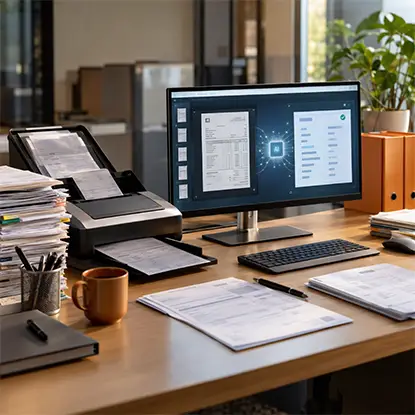
PDFs preserve the layout of invoices, forms, and contracts, but their contents can still require manual entry into business systems. docAlpha uses AI-powered document classification, data extraction, and validation to transform incoming PDFs and scans into structured information for connected workflows.
Reduce repetitive rekeying while keeping the original documents available for reference.
A handful of causes account for most layout surprises:
- Missing fonts: if the recipient doesn't have your font, their app swaps in a similar one. Wider letters push words onto new lines, and the whole page shifts.
- Different apps: a Word file opened in Google Docs, Pages, or LibreOffice is rebuilt by a different engine, and each handles spacing, text wrapping, and image placement its own way.
- Paper size: US documents default to Letter, while most other countries use A4. A page set up for one can get scaled or cut off when printed on the other.
- Screen size: some mobile apps reflow text to fit a narrow screen, so the layout you saw on your laptop never appears on a phone.
- Proprietary formats: Apple's .pages files open properly only on Apple devices, and emails saved as EML need an email client.
Recommended reading: Learn How Different Document Types Are Captured and Processed
Most layout trouble starts when someone sends an editing format to a person who only needs to read the file. This is how the most common file types behave once they leave your computer:
- TXT stores plain text with no fonts, colors, or images. It opens anywhere but carries no design.
- RTF adds basic formatting like font sizes and opens in most word processors, though it does less than DOCX.
- DOCX is Microsoft Word's format. It supports images and tables and is the standard for editing, but its layout depends on the fonts and software on each machine.
- ODT is the OpenDocument format used by LibreOffice and OpenOffice. Its formatting may not come through correctly in other word processors.
- ePUB is built for e-readers and reflows text to fit each screen, so it isn't meant to hold a fixed layout.
- PPTX is PowerPoint's format. Slides can shift when the viewer lacks your fonts, and anyone can edit them.
Adobe created PDF so a document would look the same on any device. A PDF records exactly where each character, line, and image sits on the page, and it can embed the fonts it uses, so the recipient doesn't need them installed.
That's why the PDF file format is the default for contracts, invoices, résumés, forms, and anything headed for a printer. The reader sees your layout, page breaks included, whether they open it in a browser, on a phone, or in a desktop PDF reader.
PDFs are also harder to change by accident. Someone with the right tools can still edit one, but nobody drags a table out of place just by scrolling through it. For long-term storage, the PDF/A variant is designed to stay readable as software changes.
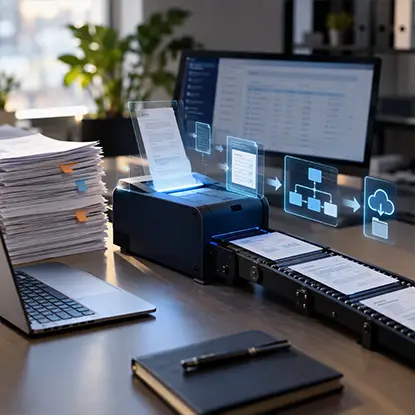
Choosing PDF keeps a document looking consistent across screens, but it does not automatically make its information actionable. docAlpha captures and validates key fields from document files and routes them through configured business processes.
Move from readable documents to more efficient, data-driven operations.
Pick the format based on what the other person needs to do with the file:
- Read, print, or sign it: send a PDF.
- Edit the text: send DOCX, or RTF for older software, and expect small layout changes.
- Work with the numbers: send XLSX or CSV.
- Read on an e-reader: ePUB works better than a fixed page.
If you aren't sure, send both: an editable file for collaborators and a PDF that shows how the final version should look.
Recommended reading: Discover How OCR Works with PDFs and Other File Formats
Most word processors can export a PDF from the Save As or Export menu. That works when you have the original app. It helps less when someone sends you a .pages file you can't open, or a scan you need to turn back into editable text.
An online file converter covers those cases because it runs in the browser with nothing to install. If you need to convert from PDF or to PDF on a laptop or phone, PDFFly handles Word, Excel, PowerPoint, images, EPUB, and plain text in both directions. It also has an OCR tool for scanned pages, which you'll need when a PDF started life as a photo of a printed sheet.
Before you send a converted file, open it once on a second device or in a different app. A quick look catches a swapped font before the file reaches your client.
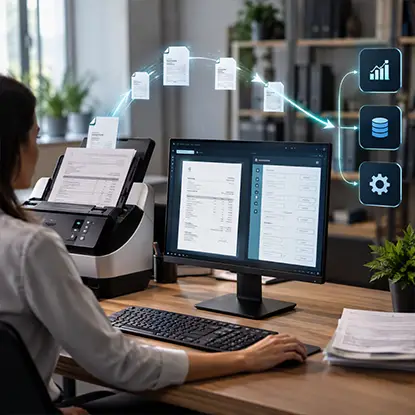
Saving a document as a PDF helps preserve its appearance, but employees may still need to copy its contents into ERP or finance systems. docAlpha combines AI-powered data capture, validation, and workflow routing to prepare information from business documents for downstream use.
Spend less time transferring data and more time resolving exceptions that matter.
Your document format decides whether the reader sees the page you designed or a rebuilt version of it. Editing formats like DOCX depend on the recipient's fonts and software, while a PDF fixes the layout in place. Send PDFs for anything that has to look right, and keep the editable file for the people who need to change it.
Recommended reading: Learn How to Convert Scanned PDFs into Editable Documents
 PDF OCR Conversion
  8 Easy Ways to Convert Your PDF into an Editable Format
  Best PDF Conversion Formats for Accuracy & Quality
  Why Tabular Data From a PDF Lands in One Excel Column
  AI PDF Workflows for Extraction, Summarization, and Review
  OCR Image to Text Conversion: What is It?
