How to Extract Text from Images and Scanned Documents Online
Published: November 26, 2026
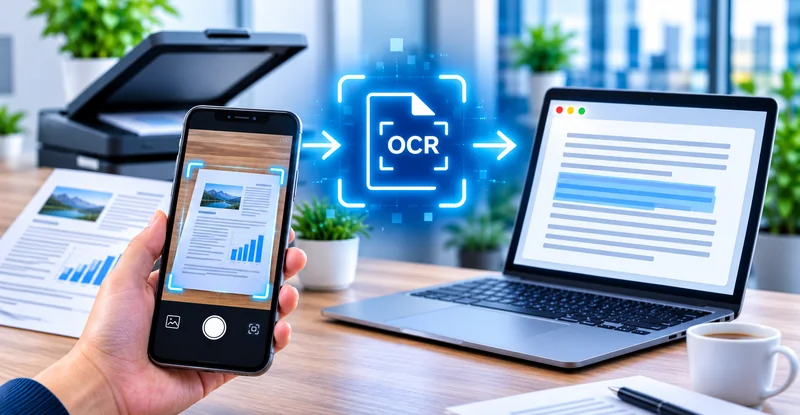
What if you could turn an image or scanned document into editable text without having to download any dedicated software? As more tools move to the cloud, installing software is becoming less necessary, especially for simple tasks like extracting text from images.
Today, users can perform image-to-text conversions online. In this blog, we’ll discuss two easy ways to extract text from images online. Read on to learn how to use them effectively.
Below, we have discussed a couple of reliable methods for converting images and scanned documents into editable text online.
Online OCR can be useful for individual images, but repeated manual conversions slow business operations. docAlpha combines intelligent classification, data extraction and validation for incoming documents.
Move beyond editable text and prepare usable data for connected business systems.
We all know that Google Drive is an online cloud storage platform that is used to store images, videos, documents, and other files. Besides this, it can also help extract text from images and scanned documents. This may sound unusual, but that’s actually true.
Below, we have discussed a step-by-step procedure that should be followed in this regard.
1. Upload Picture on Google Drive:
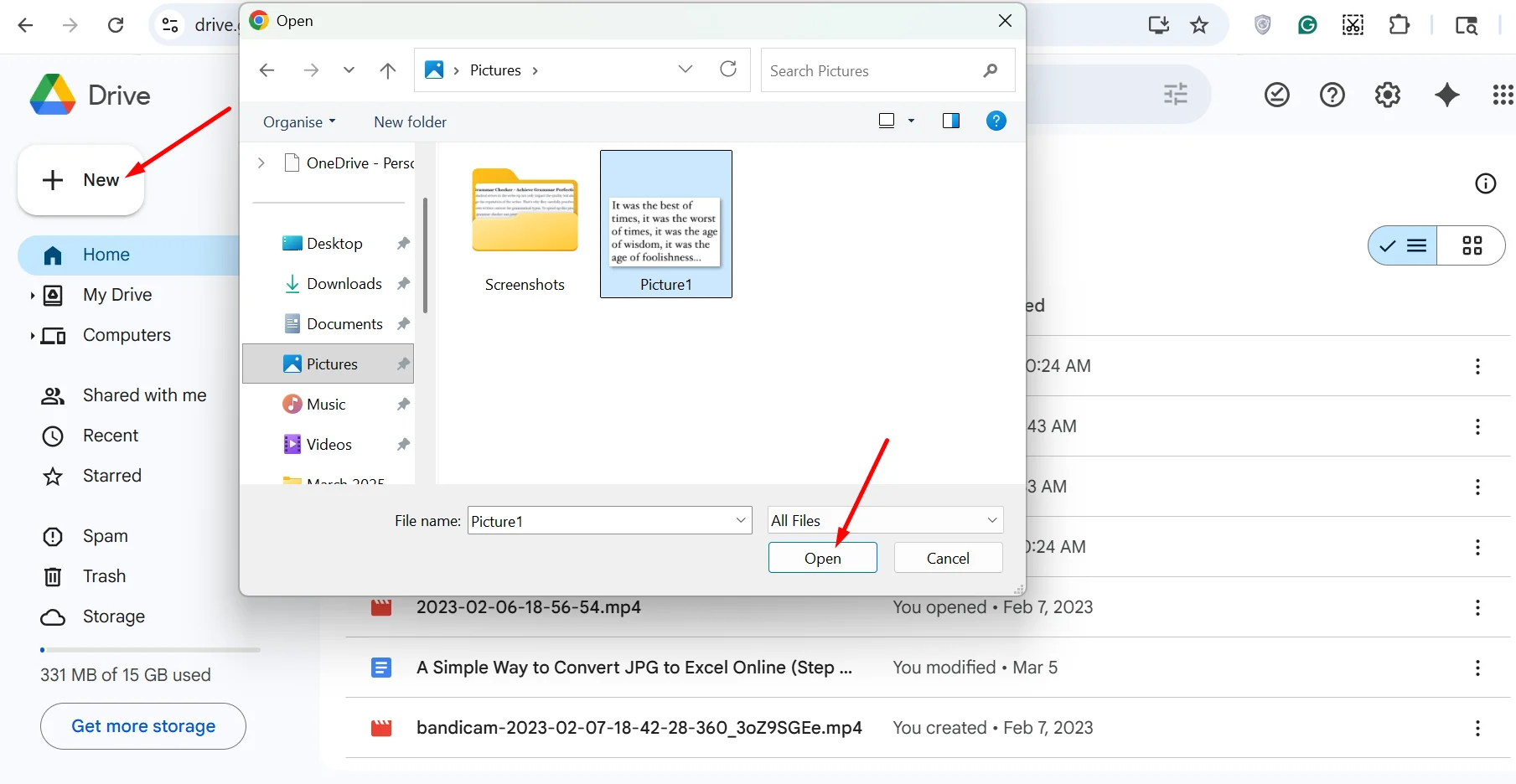
Open Google Drive on your device. In case you are not signed in, you will first have to sign in. When opened, click on the “+” icon appearing at the top left side of Google Drive. Next, select “File Upload” to upload the image.
A screenshot is attached below for easy understanding.
2. Open Picture with Google Docs:
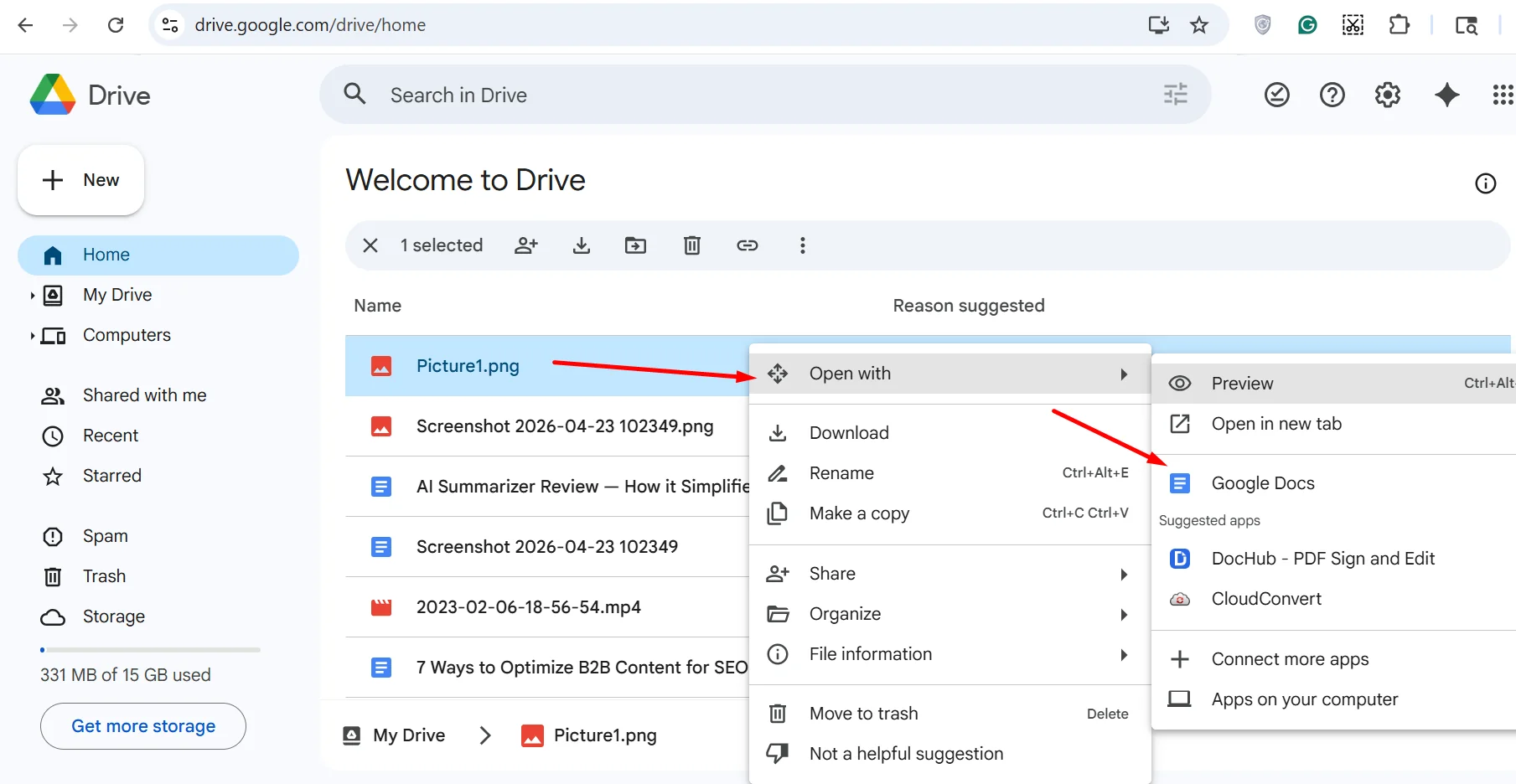
Now, right-click on the uploaded photo and select “Open With” from the menu. Next, click on “Google Docs.”
3. Get the Extracted Text:
Depending on your internet connection and the amount of text your uploaded image contains, Google Docs will take some time to come up with the results. It will provide both the original image and the extracted text separately.
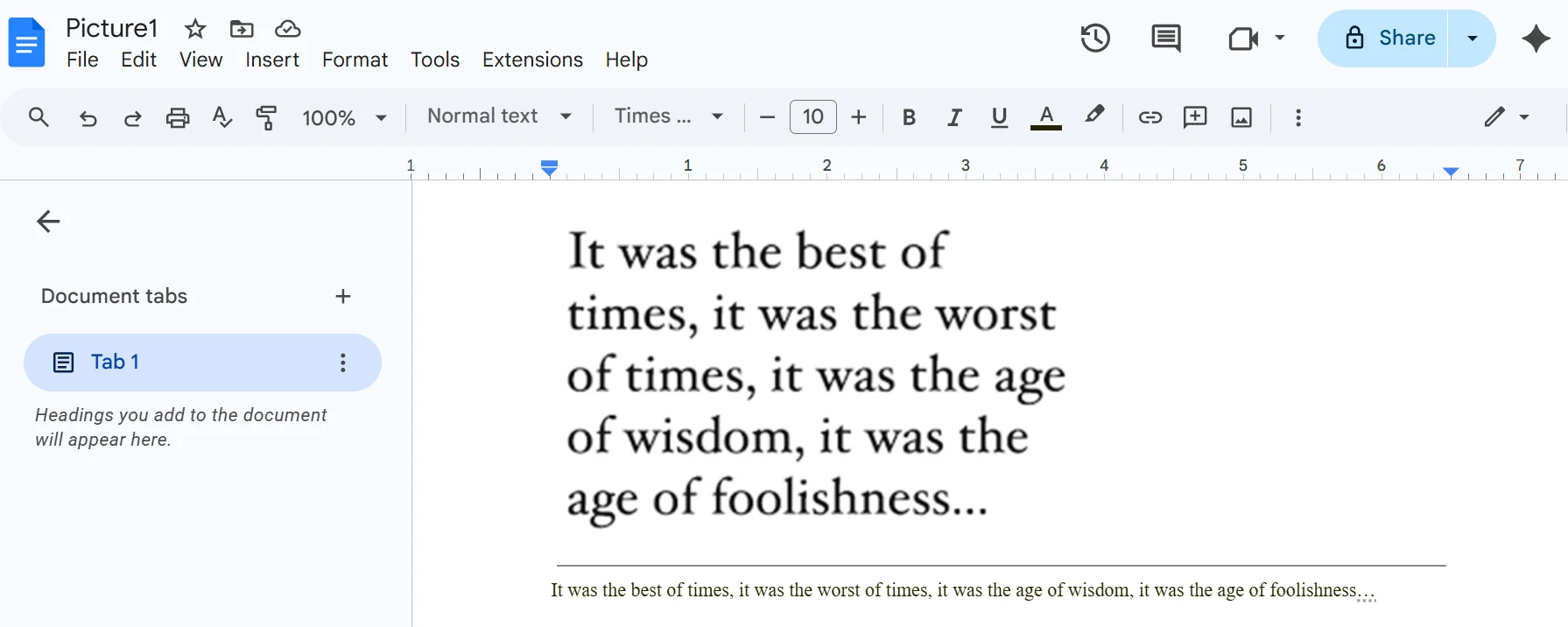
It is important to note that Google Docs does not offer a dedicated “Extract Text” button or feature, but the OCR feature is automatically applied when you open a text image with it. You need to follow the aforementioned process to get the job done.
Recommended reading: Learn How OCR Converts Images Into Editable Text
Imagetotext.cc is an online tool that converts photos, scanned documents, invoices, and even handwritten notes into editable text.
It is free and simple to use. Apart from that, the tool supports text extraction in multiple languages, accepts images in different formats (e.g., PNG, JPG, JPEG & more), and can process multiple images at once.
In the steps below, we will use it for demonstration.
1. Upload the Image:
Visit imagetotext.cc and upload the required image. To do so, the tool provides numerous options, such as uploading the photo from your device, copying/pasting the URL, or dragging/dropping.
Alert: Ensure your uploaded picture is high-quality in terms of resolution so that the tool doesn’t have to face any difficulties when detecting the text.
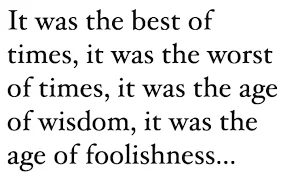
We will use the following image:
This is how the interface looks after uploading the image:
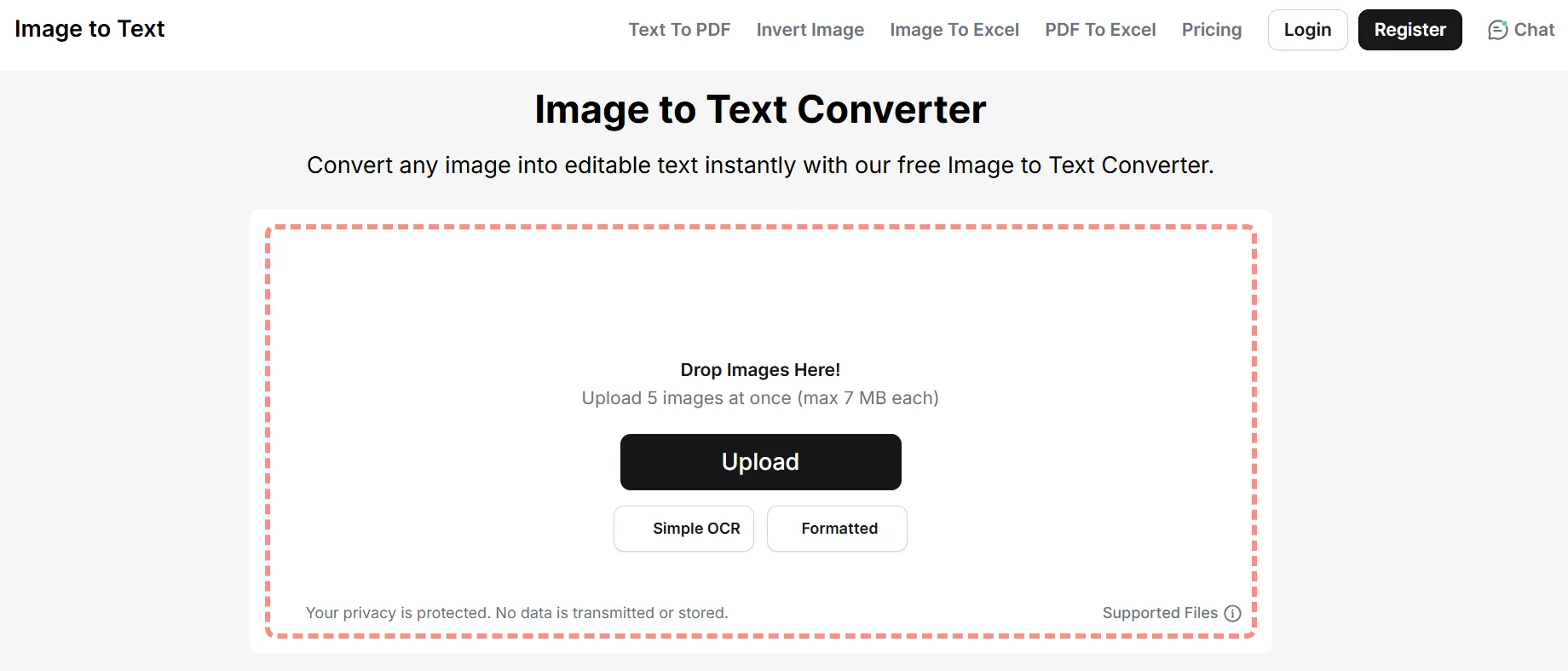
2. Select OCR Mode and Start Conversion Process:
Imagetotext.cc offers two modes for text extraction: Simple OCR and Formatted.
The Simple OCR is automatically selected by default. It focuses on speed and basic accuracy. It may struggle to process images with complex formatting, such as tables.
The Formatted mode, on the other hand, attempts to preserve the original text structure of the image. It works quite well for images containing tabular data.
Once the selection is made, simply click on the “Convert to Text” button to initiate the process.
3. Review, Copy, and Download Results:
Within a couple of seconds, the tool will provide the extracted text in an editable format.
Below is the result we got in our case.
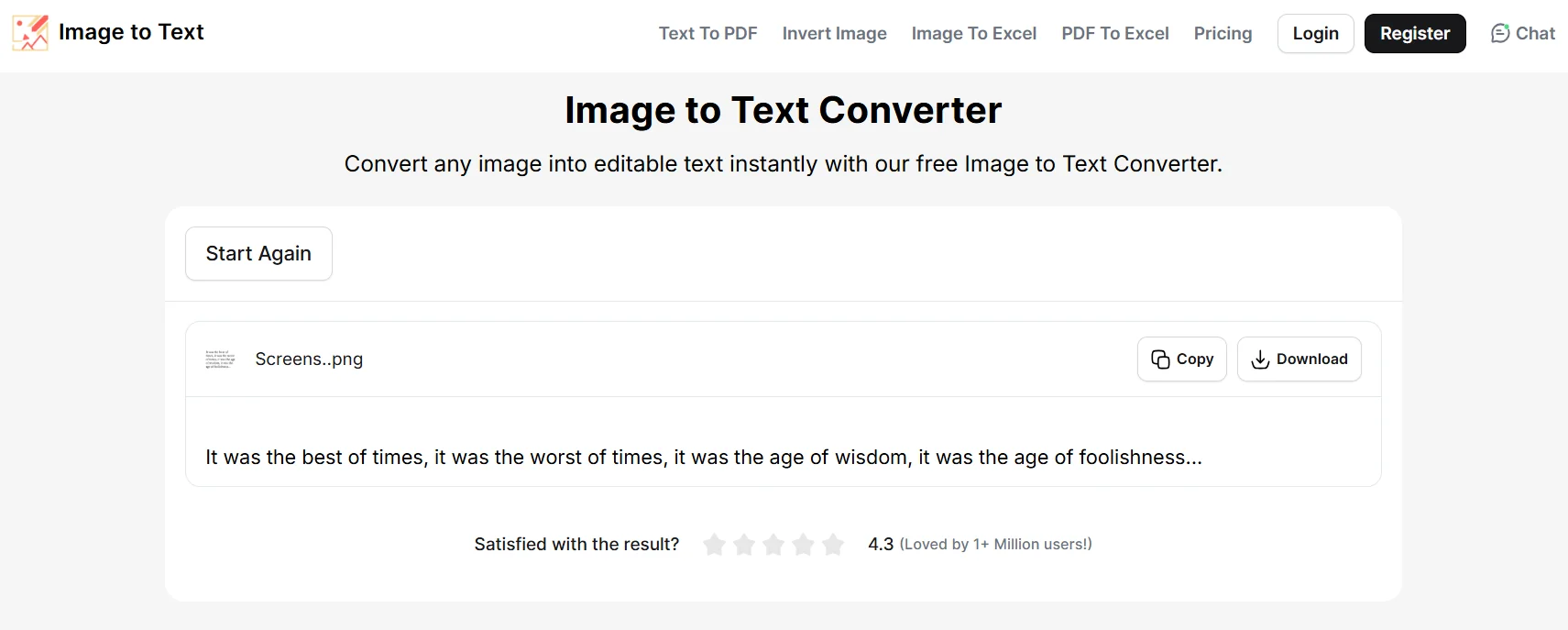
You can review the result and copy or download it for later use.
So, these are two easy and quick solutions that you can use to convert photos and scanned documents into text online.
Copying extracted text into business applications creates another manual task. docAlpha automates document capture, field validation and routing to configured destinations.
Process growing document volumes with fewer repetitive steps and more consistent results.
Extracting editable text from images and scanned documents no longer requires downloading dedicated tools or software. Now, easy solutions such as image to text converters and Google Drive allow users to perform image-to-text conversion online. Simply upload the picture, wait for a few seconds, and get results.
In this blog post, we have explained both these methods in a step-by-step procedure for a better understanding.
Recommended reading: Discover How OCR Document Processing Supports Business Automation
 How Does a Image-To-Text Converter Improve Documentation Process?
 Simplifying Data Extraction and OCR: A Comprehensive Guide for Businesses
 Leveraging OCR for Document Automation in Logistics Accounting
 Cognitive Capture: How AI Goes Beyond Traditional OCR
 Revolutionizing Document Scanning and Capture with Artificial Intelligence (AI) Technology
 Best Office Scanning Apps for Business in 2025: Top Picks Based on Performance in 2024

