A Practical Guide to Filling Out PDF Forms Online With Ease

Published: October 02, 2026
Online PDF forms save time when people need to complete government, tax, vehicle, or business paperwork. They also reduce handwriting errors and keep information readable during review. However, these benefits depend on completing each section correctly. A clear approach helps users avoid delays caused by missing or incorrect entries.
A reliable process includes finding the correct document, entering data carefully, checking required fields, and saving a usable copy. The right workflow makes fillable PDF forms manageable, even for people who rarely handle digital documents. The following steps explain how to complete each stage with fewer delays.
Start by confirming the form’s title, issuing agency, jurisdiction, and revision date. A similar document from another state or department can request different information, filing fees, or supporting records.
The PDF.live Forms Directory groups documents by jurisdiction and subject. It includes state forms for vehicle titles, tax returns, property tax claims, and license applications. Someone completing a fillable PDF form can locate a document by selecting a state or browsing the available listings. Checking the form description before downloading helps prevent work on an outdated or unrelated document.
Read the entire form before entering information. Note filing deadlines, signature requirements, identification numbers, attachments, and instructions about black ink or electronic signatures. This review prevents interruptions after the first page is complete.

Digital forms make individual documents easier to complete and share, but organizations still need an efficient way to process the information those documents contain. docAlpha turns incoming document data into structured, validated information for automated business workflows.
Scale beyond manual form handling and create a faster path from document receipt to business action.
Gather the records that the form requests. A tax document may require an address, income details, account numbers, or prior filing information. A vehicle application may need a title number, odometer reading, purchase date, and buyer details.
Keep source documents nearby, but enter information directly into the form rather than copying from memory. Confirm spelling, dates, and numbers one field at a time. A single incorrect digit in an account or identification number can delay processing.
Use the format requested by each field. Enter dates in the stated month, day, and year order. If a field asks for a legal name, use the name shown on the relevant record instead of a nickname.
Recommended reading: Discover How Electronic Forms Simplify Data Collection and Processing
Click inside the first field and move through the form in order. Type full answers unless the instructions request abbreviations. If a field does not apply, follow the form’s direction for entering “N/A” or leaving it blank.
Watch for fields that look optional but contain a required indicator. Some forms use an asterisk, colored border, or separate instruction page to identify mandatory entries. Review every page, including sections that appear unrelated to the main application.
Use consistent capitalization and formatting. Match the address, employer name, or business name shown on supporting records. Avoid inserting extra spaces, punctuation, or symbols that the receiving agency’s system might reject.
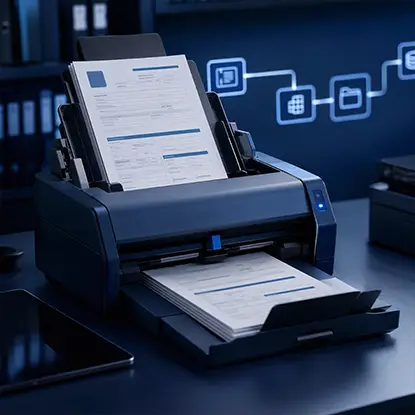
Entering information accurately is only one part of processing a business form, the data often needs to be validated and moved into another system or workflow. docAlpha captures and validates information from business documents and transforms it into structured data for downstream processing.
Reduce the manual steps between receiving a document and putting its information to work.
A careful review should cover every page, not only the first screen. Compare names, addresses, dates, totals, and identification numbers against the source records. Check that selected boxes match the applicant’s situation and that no answer appears in the wrong field.
Look for hidden content near the page edges. Text can appear clipped when a field is too small, while long numbers can become difficult to read. Reduce the font size when the form allows it, or revise the entry so the complete answer remains visible.
Add the required signature after reviewing the final version. Some forms accept a typed signature, while others require a drawn signature, an electronic certificate, or a printed and signed page. Follow the issuing agency’s instructions instead of assuming every PDF format uses the same method.
Recommended reading: Learn How to Verify Documents for Accuracy and Completeness
Save the completed document with a clear filename that includes the form name and date. A name such as title-application-2025-03-08.pdf makes the file easier to identify than a default name such as document1.pdf.
Open the saved copy before submitting it. Confirm that the entered text remains visible, check that signatures appear, and verify that no pages disappeared during saving. Print the file if the recipient requires a paper submission.
Keep a copy of the submitted form and any supporting documents. Store them in a secure folder because forms often contain addresses, account numbers, tax information, or other personal data. Use the submission method listed by the agency, whether that means an upload portal, email address, mail service, or in-person delivery.
Manually checking names, dates, account numbers, and other fields may work one document at a time, but the effort grows quickly with volume. docAlpha intelligently extracts and validates information from documents while directing exceptions for human review.
Spend less time rekeying routine information and more time handling the cases that actually require attention.
Filling out a PDF online becomes easier when the process follows a fixed order: verify the document, gather source records, enter each answer carefully, review every page, and save a readable final copy. The last check deserves as much attention as the first entry because small errors can delay approval. Before submitting, reopen the saved file and compare its required fields against the agency’s instructions. That simple habit protects accuracy and creates a dependable record.
 8 Easy Ways to Convert Your PDF into an Editable Format
  PDF OCR Conversion
  Best PDF Conversion Formats for Accuracy & Quality
  Electronic Signatures In Document Automation
  Data Extraction with OCR: Extracting Data from Invoices, Forms, Receipts
  Document Scanning and Capture with AI Technology
